Powervision User Guide
Powervision empowers your sales strategy with advanced Relationship Intelligence and Influence Management™. This user guide will help you make the most of Powervision's features.
Powervision is a SaaS platform that manages Interactive Powerscope graphs.
“RiiM™ Links” including:
Contact-to-contact trust relationship
Handler-to-contact “handling” links
Thematic Networks
Direct reporting links
Additional contact information:
Buyer roles and inclination for an opportunity or an account
Business drivers, personal drivers
Key concepts and definitions
In addition to basic information (Name, bio…), contacts may be linked to several objects.
A Thematic Network is a professional group a contact belongs to, such as a club or alumni association.
The Level is an integer indicator that goes from 1 to 5 to indicate the hierarchic level of the contact in the organization/account. 5 is the highest level (for instance C-Level), while 1 is the lowest level.
The Weight is an indicator for the political weight from 5 (very high), to 1 (rather low). In a given opportunity, the Weight become Importance.
The Preference measures the overall inclination toward us / our position / our company, pertinent to that person in this Account. It goes from Opponent to Ally.
The Inclination measures the inclination of the individual toward the offer in the Opportunity. It goes from Opponent to Ally.
The Interpersonal Relationship is a link between two people, from 5 to -5. For example, Mallanco hired Truong which is a positive one.
Role in buying center is a free-text designation of the role of this person in a buying center (if any).
In the business market, those associated with the purchase decision are known to be part of a Buying Center, which consists of individuals within an organization that perform one or more of the following roles:
Buyer – responsible for dealing with suppliers and placing orders (e.g., purchasing agent)
Decider – has the power to make the final purchase decision (e.g., CEO)
Influencer – has the ability to affect what is ordered, such as setting order specifications (e.g., engineers, researchers, product managers)
User – those who will actually use the product when it is received (e.g., office staff)
Initiator – any Buying Center member who is the first to determine that a need exists
Gatekeeper – anyone who can give access to other Buying Center members (e.g., administrative assistant
The Dashboard
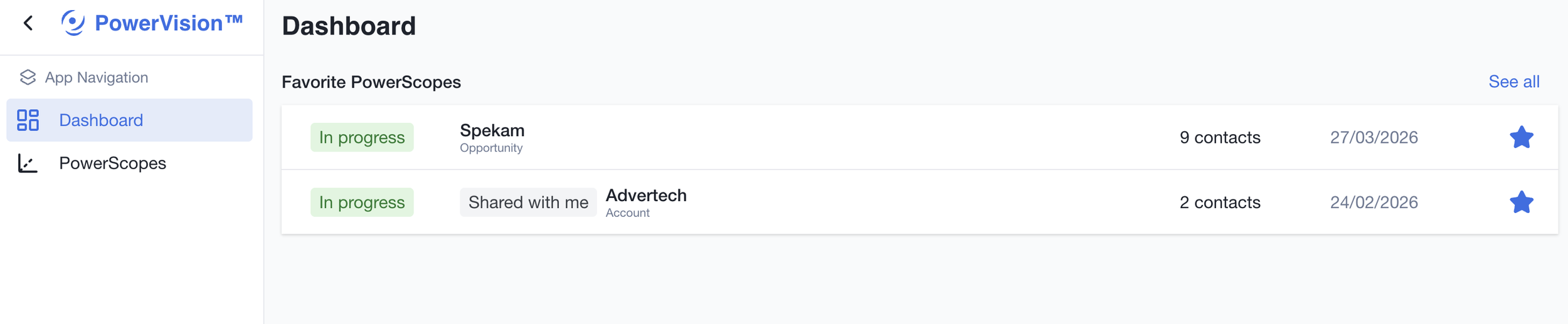
In this section, you will find your favorite PowerScopes.
PowerScopes
In this section, you will find your PowerScopes and those shared with you.
Now, let’s see how to create a new PowerScope.
Click the button on the top right. A pop-up will open on your screen:
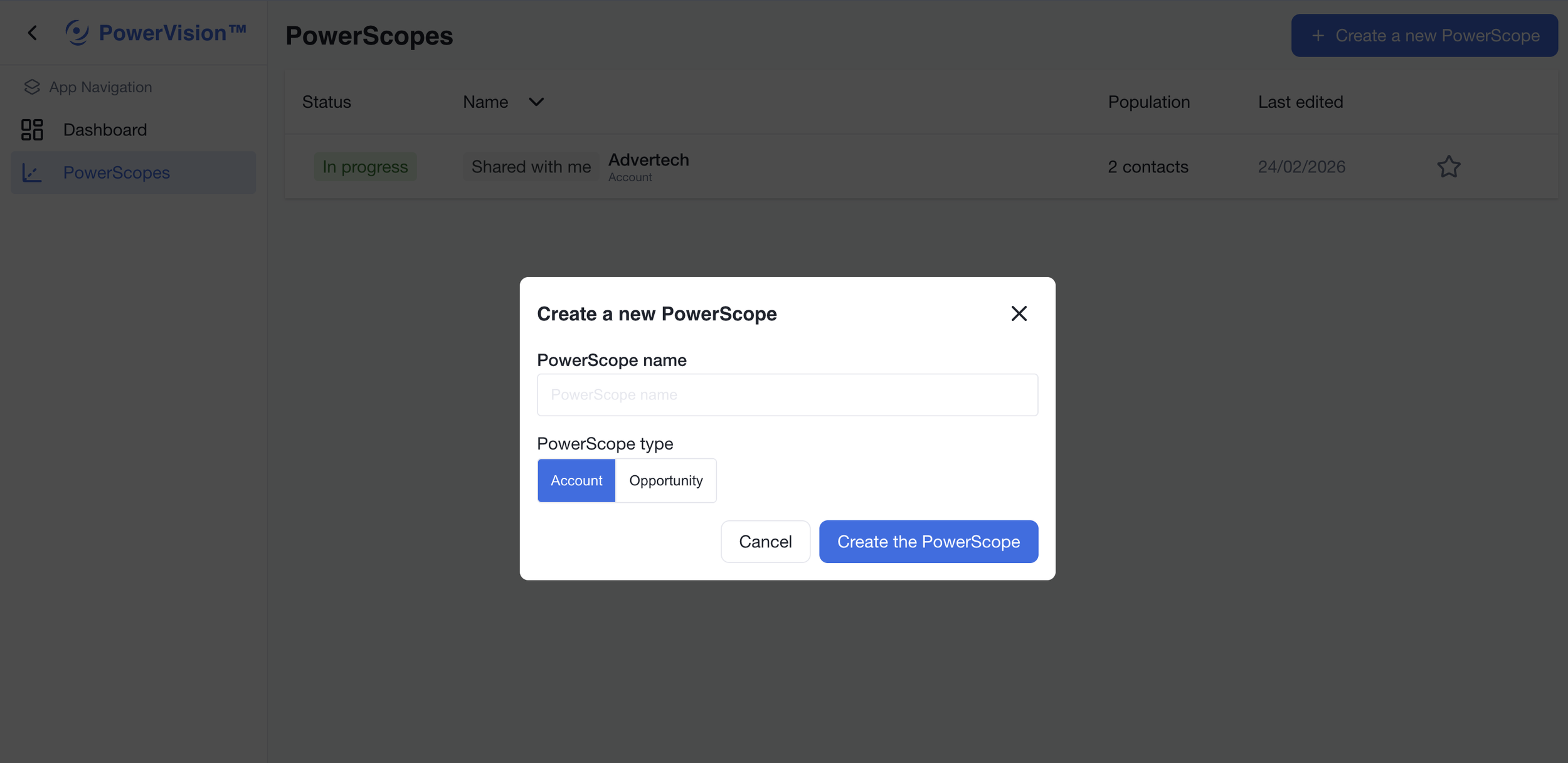
In this window, you will be able to choose a name for your graph and select its type—either an Account or an Opportunity.
Once this is done, you can add contacts to the graph by clicking the “Create a new contact” button.
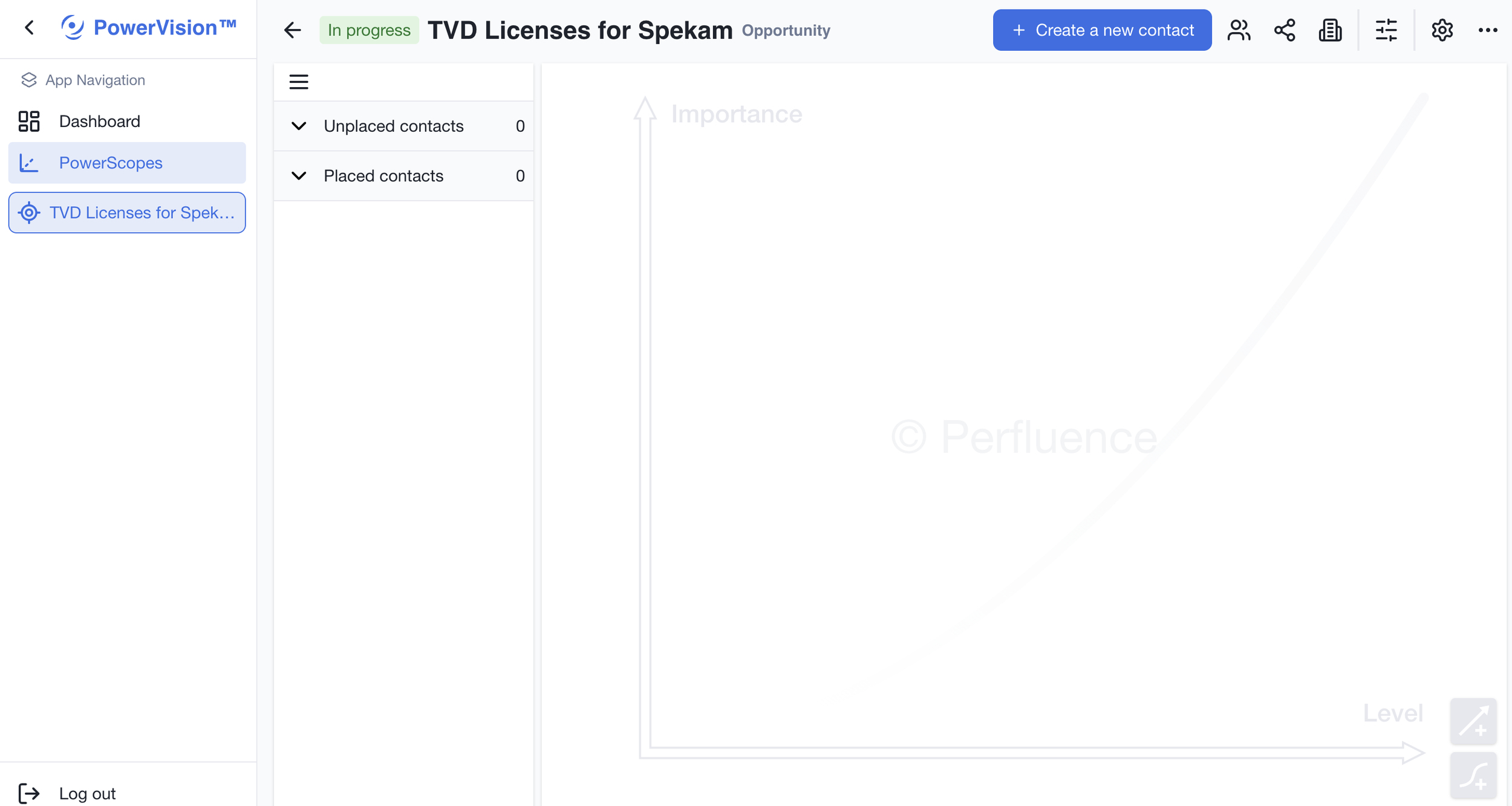
When you create a new contact, it will go to the “Unplaced contacts” section. If you want to add it to the graph, simply click on it.
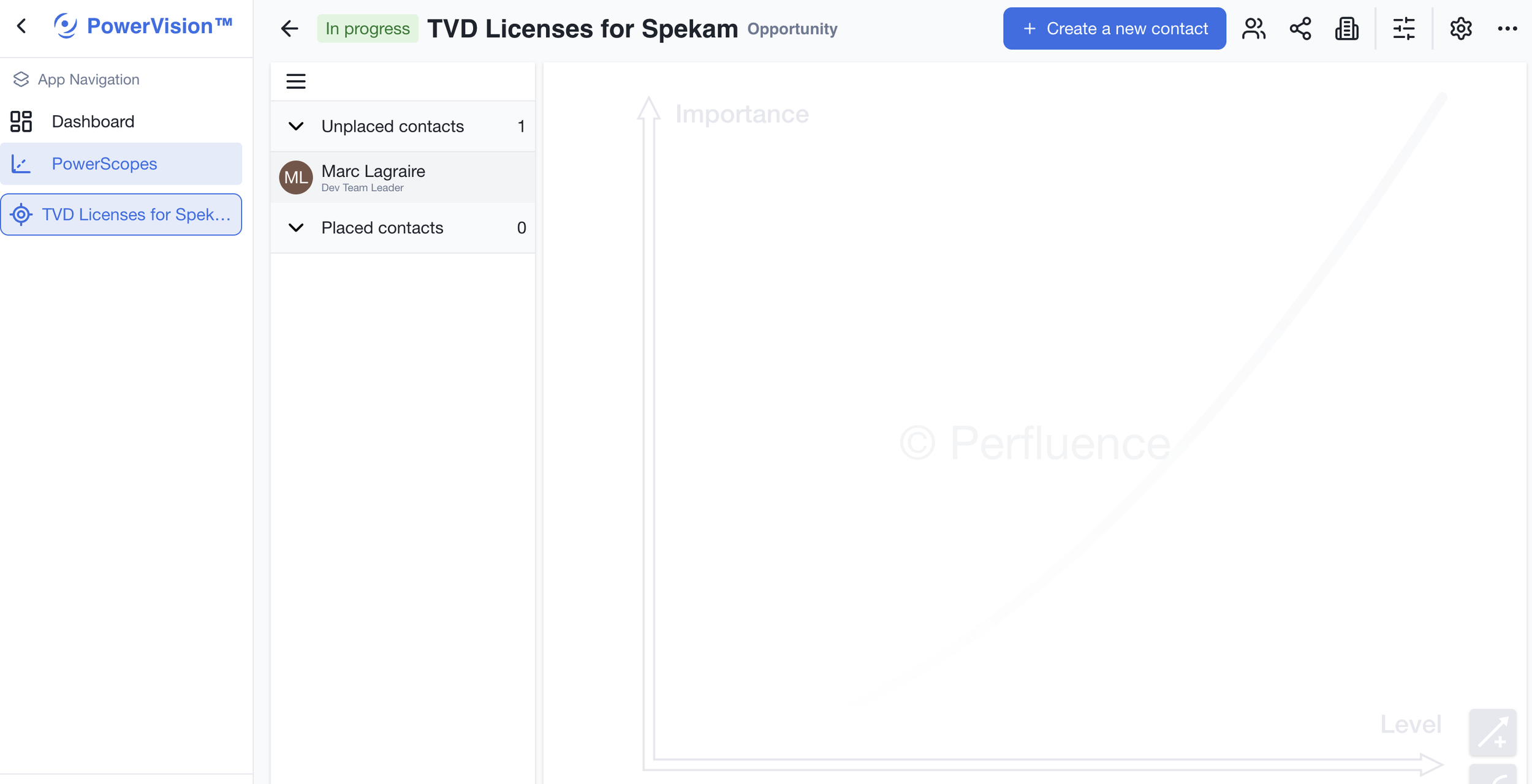
The contact will now be in the “Placed contacts” section. Simply repeat this process for all the contacts you want to add. You can then move the contacts by clicking and holding directly on the contact itself.
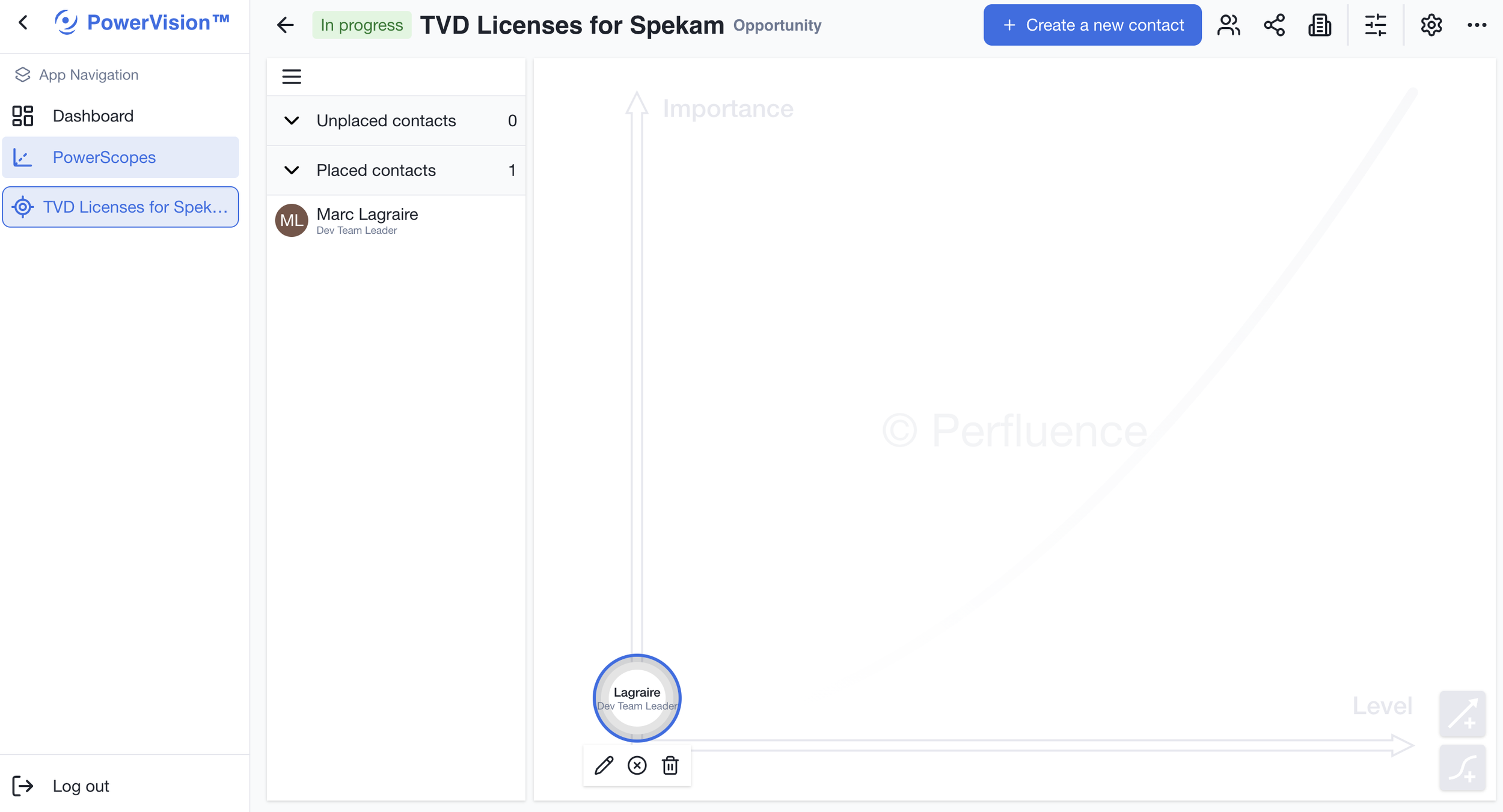
By clicking on a contact you can:
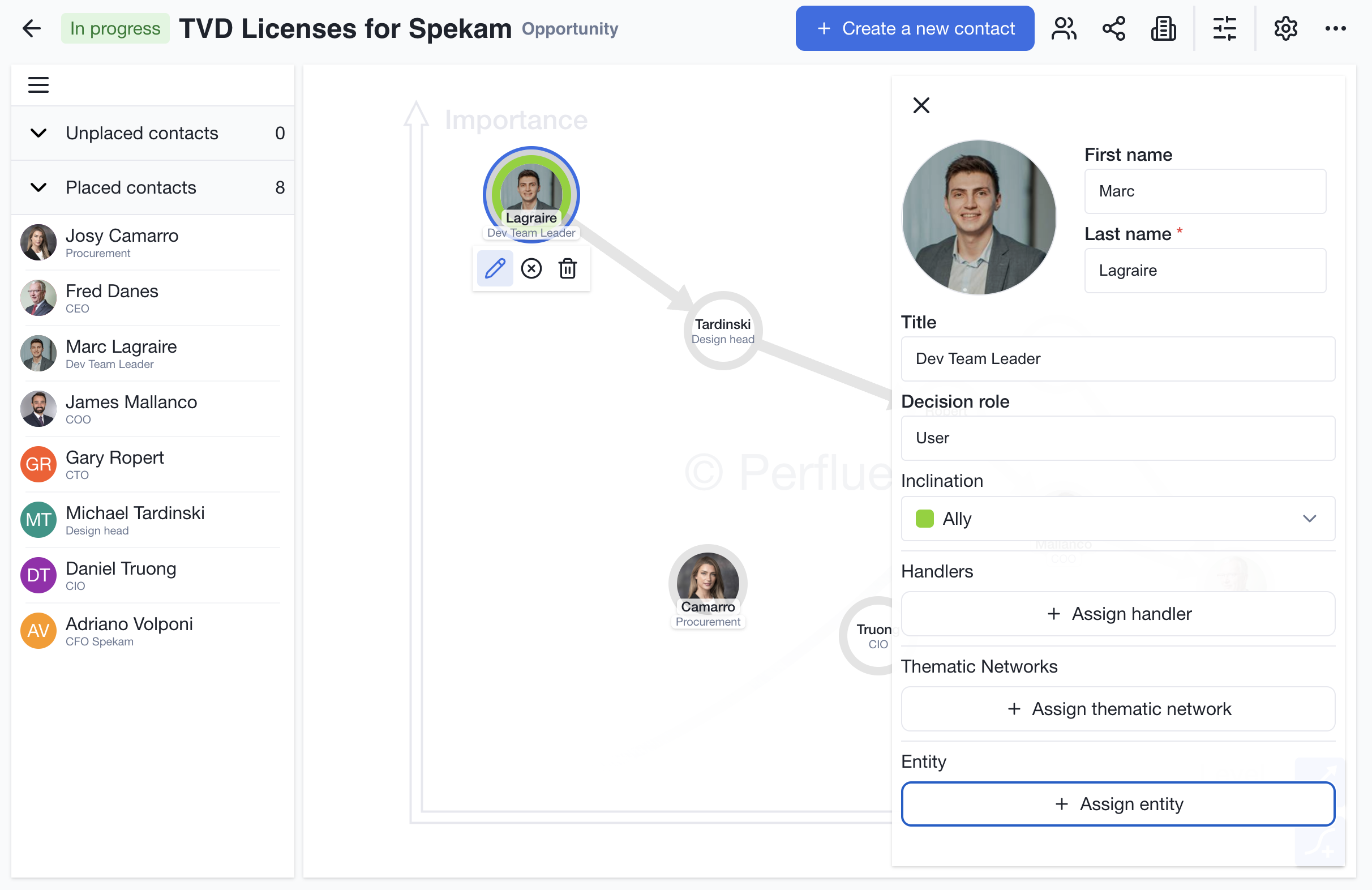
Modify all the contact information (name, title, picture, decision role, inclination/preference, assign handlers, Thematic Networks and Entity) by clicking on this button

It will open a drawer on the left:
Remove the contact from the graph so that it goes to “Unplaced contacts” by clicking this button

Delete the contact from the system by clicking this button

On the bottom right, you have two buttons:
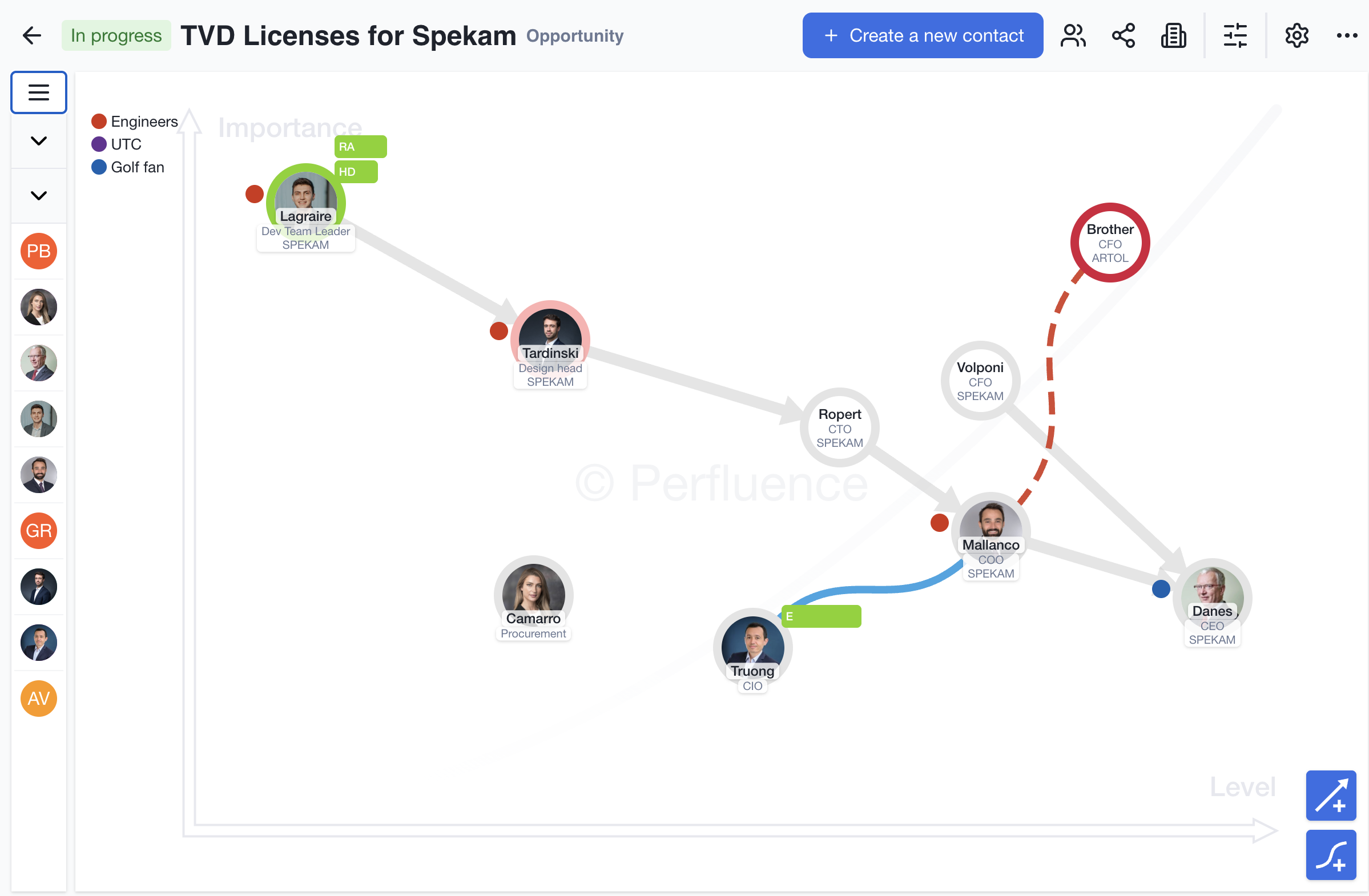
Create a direct reporting line between two contacts; on the graph, it will be shown as grey arrows.

Create an interpersonal relationship between two contacts; on the graph, it will be shown as a solid line when the relationship is positive, and as a dashed line when it is negative.

You can modify direct interpersonal relationships directly on the graph.
Manage Handlers, Thematic Networks and Entity
On the right you have three buttons:
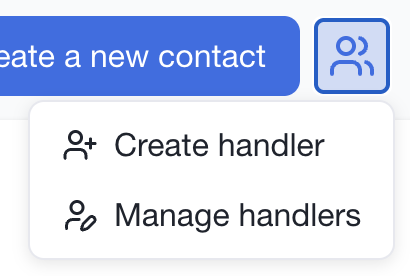
Create or manage handlers
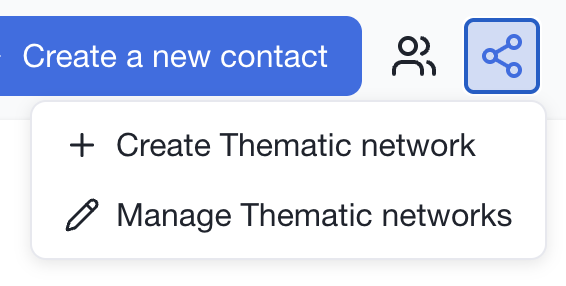
Create or manage Thematic Networks
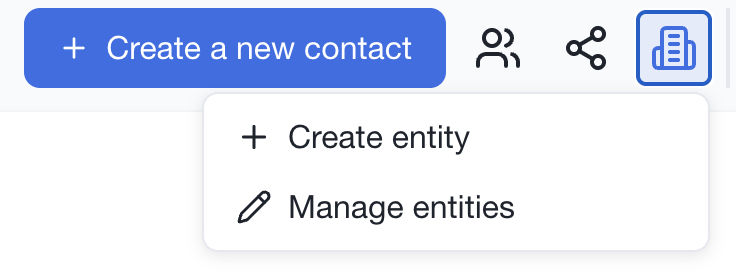
Create or manage entity: it can be a company, an organization unit, …